Step-by-step guide
Getting Started with MailerLite: A Beginner’s Setup Guide
A step-by-step beginner’s guide to MailerLite: create your account, set up your audience, build a signup form, and send your first campaign.
- Last reviewed
- By l3ttr.com
- 6 min read
This guide takes you from an empty account to your first sent campaign. It follows MailerLite’s own setup requirements, explains each step in plain English, and points out the mistakes beginners make most often.
The steps are written for the current version of MailerLite. Menu names can change, so if a screen looks slightly different, look for the same function nearby or search MailerLite’s help center.
Before you start
Have these ready. They make signup much smoother:
- A domain you own (for example
yourbusiness.com) and access to its DNS settings. You’ll use it to send email. - A clear description of your business and what you plan to email.
- An honest answer to “where do your subscribers come from?” For example: “a signup form on my website” or “customers who opted in at checkout.”
- A physical mailing address to show in your email footer. Anti-spam laws such as the US CAN-SPAM Act require one.
Step 1: Create your account
- Sign up on MailerLite’s website and verify your email address.
- Complete your profile. MailerLite asks about your business, your website and how you collect subscribers.
Account approval is automatic and happens during signup: your account is approved or rejected straight away, so there’s no waiting period before you can send. MailerLite checks new accounts to protect its sending reputation, which helps deliverability for every customer.
New accounts get a 14-day free trial of premium features, with full support including live chat. That makes the first two weeks a good time to ask questions while you set things up. After the trial you need to authenticate your sending domain, so it’s worth doing now (Step 2).
Step 2: Authenticate your sending domain
Domain authentication proves to inbox providers like Gmail and Outlook that MailerLite is allowed to send email on behalf of your domain. It is one of the most important things you can do for deliverability.
- In MailerLite, open the domain settings and add your domain.
- MailerLite shows you DNS records to add (typically for SPF and DKIM).
- Add those records at your domain registrar or DNS provider.
- Return to MailerLite and verify. DNS changes can take a few hours to update.
Our email deliverability checklist explains SPF, DKIM and DMARC in plain terms.
Step 3: Set up your audience
Before you collect anyone, decide how you’ll organize subscribers. MailerLite gives you three tools:
- Groups: lists you put people into, such as “Newsletter” or “Customers”. A subscriber can be in several groups.
- Custom fields: information about each subscriber, such as first name or country.
- Segments: saved filters that update automatically, such as “opened an email in the last 90 days.”
If you’re importing an existing list, put the imported contacts in their own group so you can track them separately. Read our guide to email list segmentation when you’re ready to go further.
Step 4: Create a signup form
You need a way for people to join. Choose one:
- Embedded form: sits inside a page on your website. Best for a footer or blog sidebar.
- Pop-up: appears after a delay or when someone is about to leave. Effective, but use it with restraint.
- Landing page: a standalone page hosted by MailerLite. Ideal if you don’t have a website, or for a specific offer.
When you build the form:
- Connect it to your group, so new subscribers land in the right place.
- Say exactly what people are signing up for: what you’ll send and how often. “A short email every other Tuesday with new workshop dates” sets better expectations than “Subscribe to our newsletter.”
- Decide on double opt-in. Subscribers confirm their address by clicking a link. It adds a step, but it keeps fake and mistyped addresses off your list.
- Customize the thank-you and confirmation messages so they sound like you.
The Free plan includes 3 forms and 1 landing page, which is plenty to start.

Step 5: Build your first newsletter
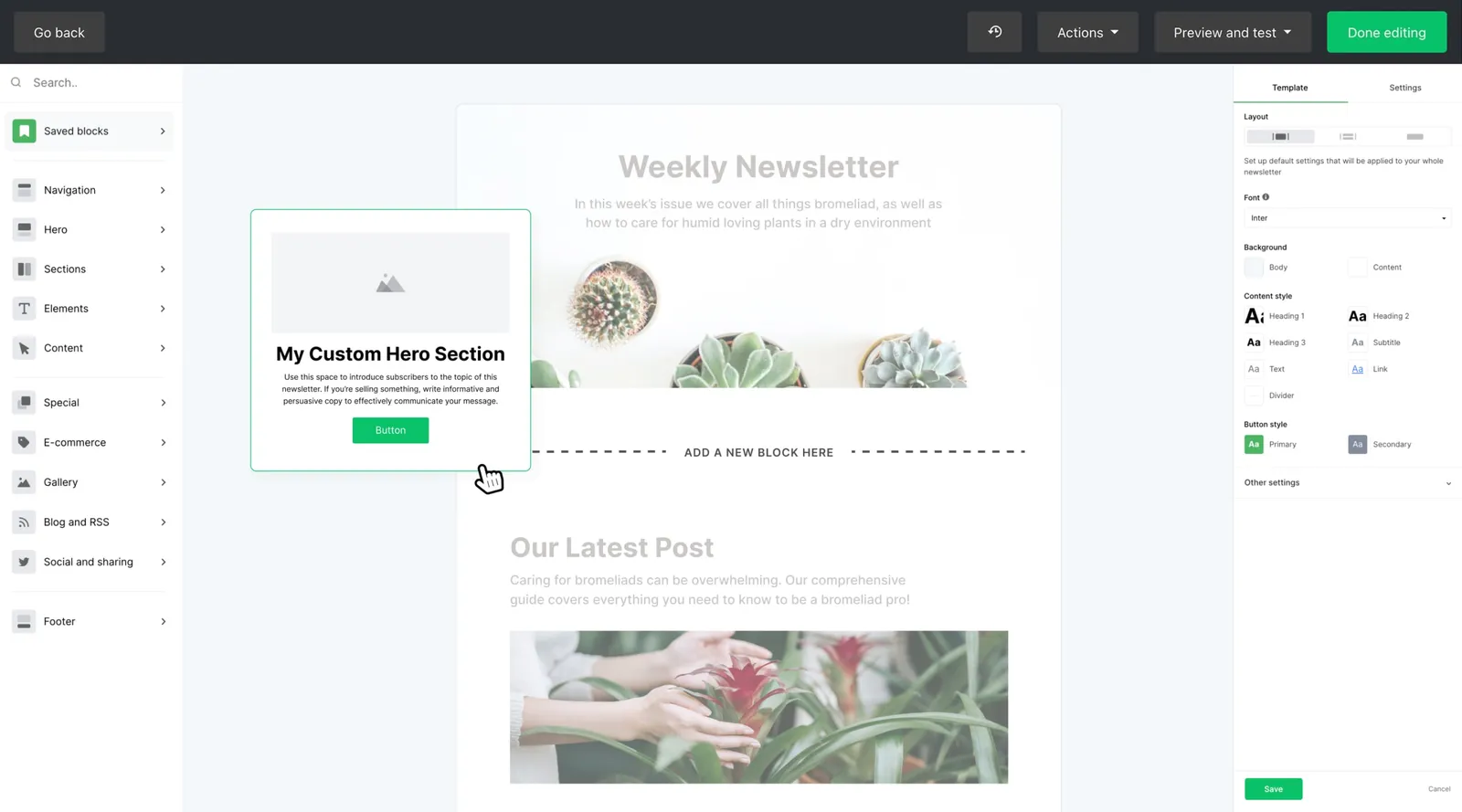
- Create a campaign and choose a regular campaign.
- Write a clear subject line. Specific beats clever: “3 new spring workshops (and a free class)” tells people why to open.
- Pick an editor. The drag & drop editor builds designed emails from blocks. The simple editor creates plain, personal-looking emails, which often suit newsletters from individuals.
- Save your design as a template so future newsletters take minutes.
- Check the footer. It needs your physical address and an unsubscribe link. MailerLite adds the unsubscribe link for you.
For ideas on what to write and how often, see our newsletter strategy guide.
Step 6: Send your first campaign
- Send a test email to yourself, and check it on your phone as well as a computer.
- Click every link in the test.
- Choose your recipients: the group or segment you set up in Step 3.
- Schedule or send. A/B testing is available on all plans. Try two subject lines if your list is large enough to learn something.
- Check the report a day or two later: delivery, clicks and unsubscribes. Our guide to email marketing metrics explains which numbers matter.
Step 7: Understand email automation
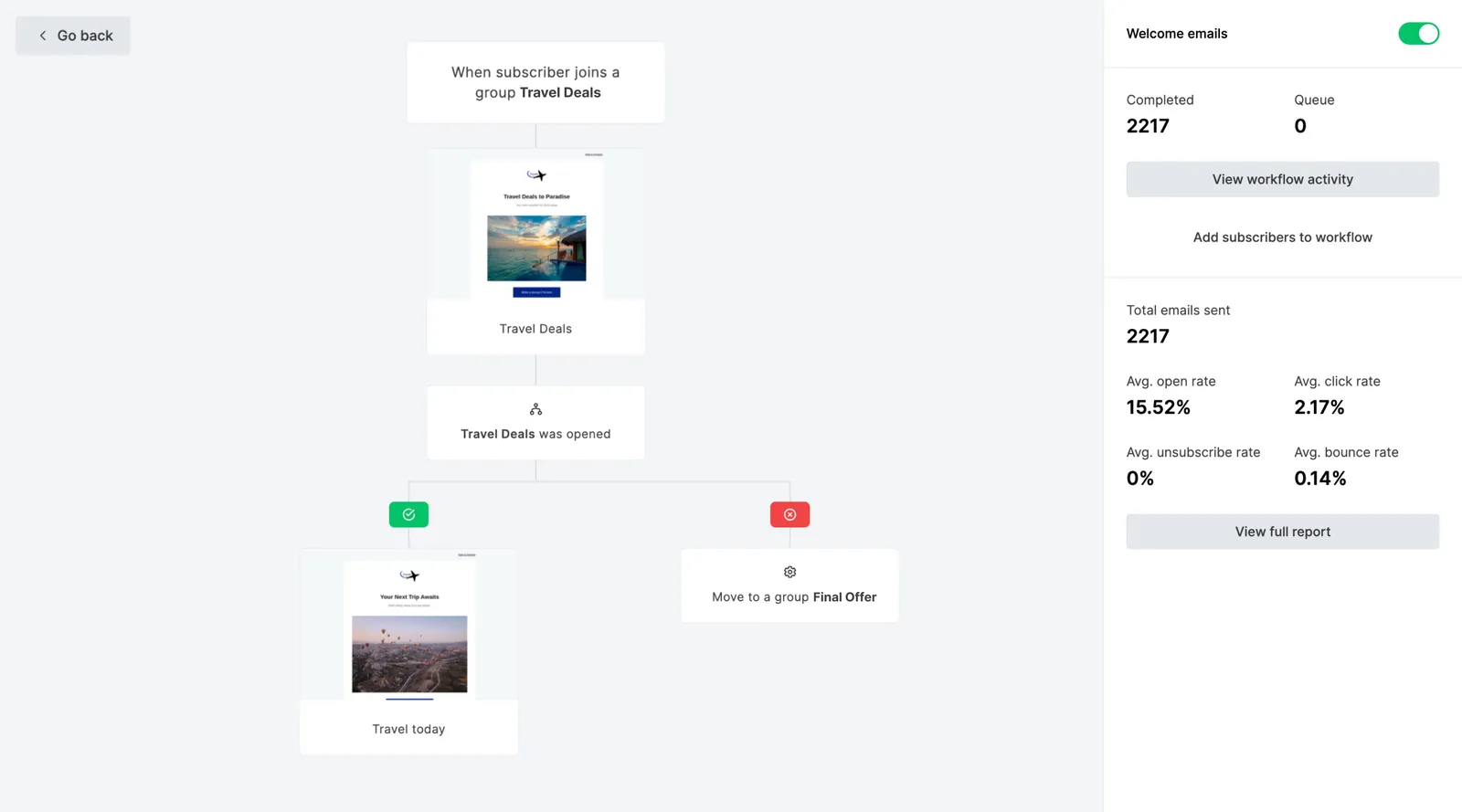
Automation sends emails for you when something happens, such as a new subscriber joining a group. Set up your first one now: a welcome email for new subscribers.
In MailerLite you build automations in the visual automation builder:
- Choose a trigger, for example “when a subscriber joins a group.”
- Add an email, a welcome message that delivers anything you promised and explains what comes next.
- Optionally add a delay and a second email a few days later.
The Free plan allows 3 active automations (up to 5 steps each). Our welcome email sequence guide gives you a sequence to adapt.
Optional: connect MailerLite to your AI assistant
If you already use ChatGPT, Claude or Cursor, you can connect your MailerLite account to it through MailerLite’s MCP server. It’s available on every plan, including Free, and takes a few clicks, with no code or API keys. Once connected, you can ask questions in plain language, such as “which subscribers haven’t clicked in my last three campaigns?”, and have the assistant draft a re-engagement campaign or automation for you to review.
Follow MailerLite’s MCP setup guide for your tool. Note that the AI tool may have its own plan requirements; Claude, for example, needs a Pro, Max, Team or Enterprise plan. For MailerLite’s built-in AI features, see the AI tools section of our review.
Common mistakes to avoid
- Importing contacts who never opted in. It harms deliverability, breaks the rules of most email platforms, and can lead to account suspension.
- Sending from a free webmail address. Use an address on your own authenticated domain.
- Skipping the welcome email. New subscribers are most interested right after they join.
- Sending irregularly. Long silences make people forget they subscribed, which leads to spam complaints.
- Measuring success by open rates alone. Privacy features in mail apps distort open rates. Clicks and replies are more reliable.
- Outgrowing the Free plan without noticing. At 250 subscribers or 2,500 emails a month, sending pauses. Keep an eye on your numbers. Our pricing guide explains the next step.
Ready to set up your account?
Follow the steps above with MailerLite’s Free plan. You can upgrade later if you need more.
Affiliate link: we may earn a commission. Disclosure
Frequently asked questions
How long does it take to set up MailerLite?
Plan on an afternoon for the essentials: your account, your sending domain, one signup form and a welcome email. Your first newsletter takes longer the first time, while you set up a reusable template.
Do I need my own domain to use MailerLite?
MailerLite’s help center says you need to authenticate your sending domain after the 14-day premium trial. In practice that means sending from an address on a domain you own (like hello@yourbusiness.com) rather than a free webmail address. See our deliverability checklist.
Can I import my existing contacts?
Yes. You can import contacts from a CSV or spreadsheet. Only import people who agreed to receive your emails, and record where and when they signed up.
Keep reading
Email marketing tools
MailerLite Review: Features, Pricing, Pros and Cons
An independent MailerLite review: what it does, who it suits, the 2026 plan changes, real limitations, and when another email platform is the better choice.
8 min read
Email automation
Welcome Email Sequence: A Practical Template with Timing
Why welcome emails matter, plus a five-email sequence with timing, purpose, and subject lines for each, writing tips, and how to set it up in any tool.
7 min read
Email marketing basics
Email Deliverability Checklist: How to Reach the Inbox
A practical deliverability checklist: SPF, DKIM and DMARC explained plainly, the 2024 Gmail and Yahoo sender rules, list hygiene, consent and warming.
6 min read